Organization / Overview
Display the details of the selected organization. Change to another organization if you are wanting to know what is happening in the region when travelling. Or perhaps you want to know what is happening in different organizations.
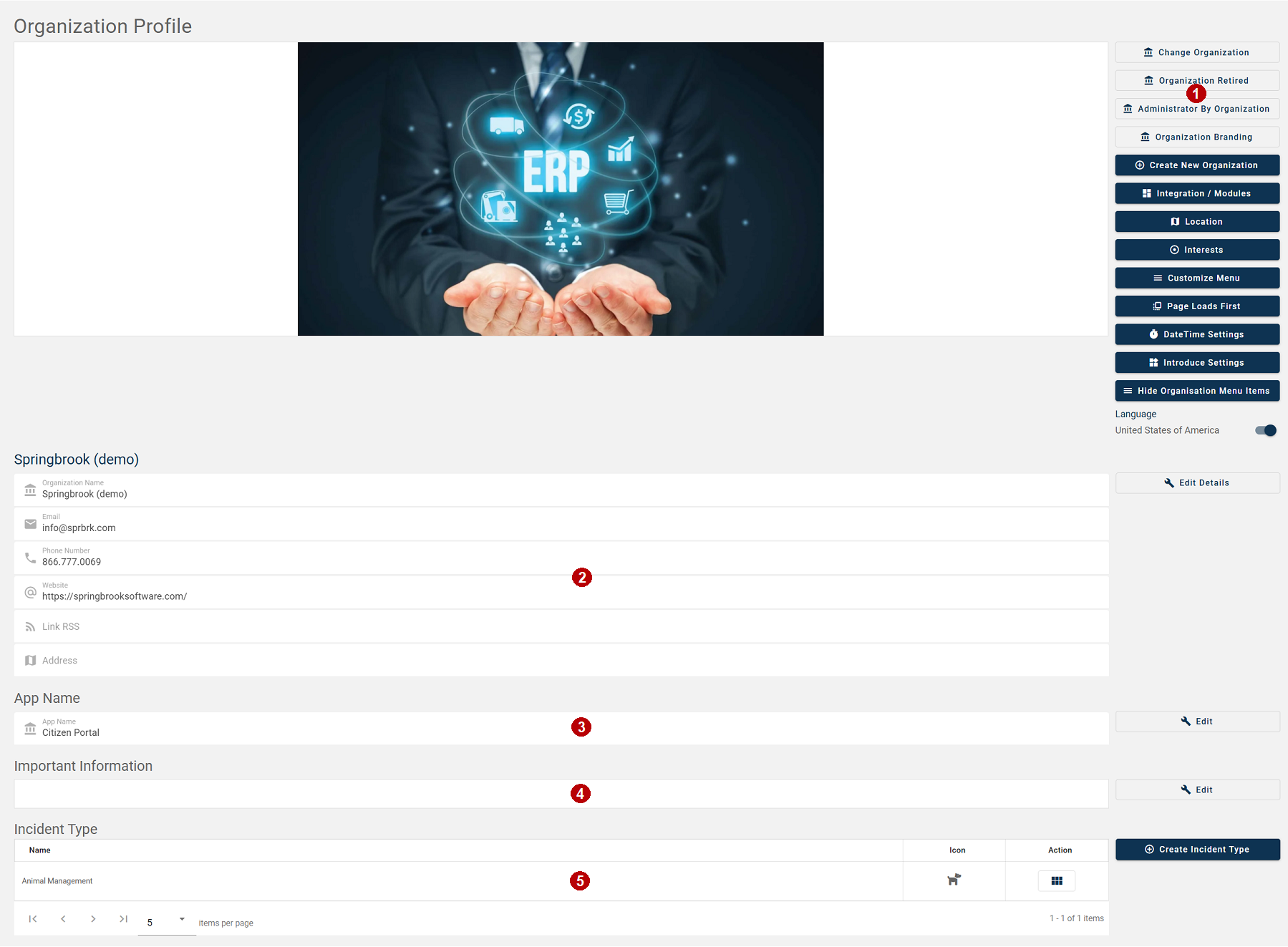
 Menu Buttons
Change Organization
Switch to another organization.
Administrator By Organization
(Administrators Only)
Show which users are organization administrators.
Organization Branding
(Administrators Only)
Choose colors and logos.
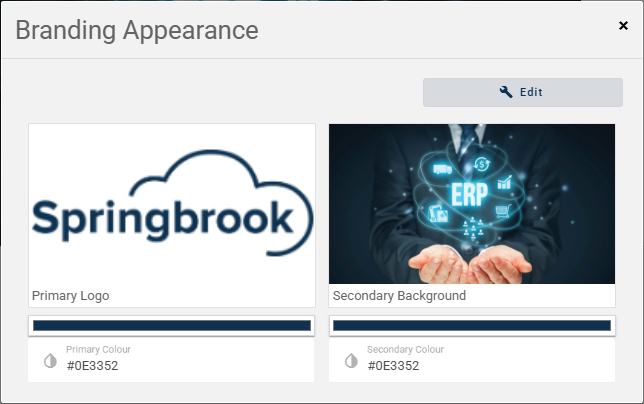
The minimum image size is 300x1000px and the maximum image size 500x1500px. The most suitable image size is less than 1 MB.
Create New Organization
(Administrators Only)
Create a new organization.
Integration / Modules
Configure Enterprise Integration, Community Documents, Insight Settings and Search Online/Assessor Search
Location
Interests
Customize Menu
(Administrators Only)
Change 'Connect' menu item to Organization specific terminology such as Issues, Requests etc.
Page Loads First
Choose which page will load by default for the citizen. Using the mobile app, the citizen can change their own setting within My Profile
Date and time settings
(Administrators Only)
Select the date format and time zone. The dates will display in that format for News, Connect and Notices.
Introduce Settings
Hide Organization Menu Items
Hide News, Connect and Notices if Organizations are not using that functionality.
Language
Toggle on to display American spellings.
 Organization Details.
(Administrators Only)
Note
RSS Feeds are updated every hour.
RSS feeds without a valid URL will be ignored by the system.
To make sure important notices (e.g. natural disasters, urgent alerts) are always visible to citizens, the admin needs to ensure every news item has a correct URL before publishing.
The synchronization process will:
- Skip only the items with empty or invalid URLs.
-
Continue importing and saving all other valid news items. This ensures one faulty item no longer blocks the entire feed.
-
Don’t worry if any news was missed, once the incorrect format is corrected, the system will automatically update and add it to the feed, as the news is refreshed every hour.
Edit Details - Edit your organization details.
 Application Name.
(Administrators Only)
Defaults to Community Engagement.
Edit - Change the name to suit your organization. Name displays at top of browser.
 Important Information.
(Administrators Only)
Display important information when a user is creating an issue.
-
Click Edit to add/update your information. Font style, size and colors can be applied.
-
Click Apply Changes once updated.
 Incident Types.
(Administrators Only)
Create connect categories. Only applicable if integration is not configured.
-
Click Create Incident Type to create your incident types/categories.
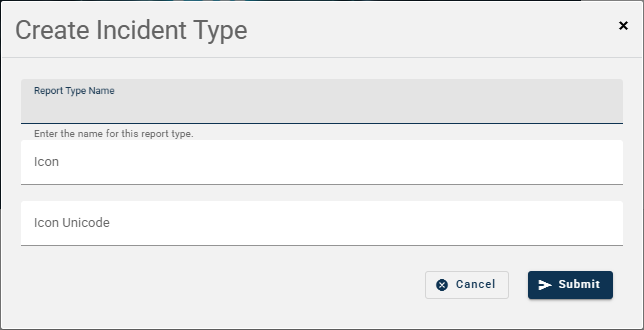
Report Type Name - Enter the name of incident type/category.
Icon - enter the font awesome name. For example, fa-road.
Icon Unicode - enter the font awesome unicode. For example, \f6d3
-
Click Submit
To edit or delete the incident type:
- Click
 .
.